Product Images
Describe the product, surface, lighting, camera angle, and background. Add references when packaging or object details need visual guidance.
Choose Flare or Sunburst, enter a prompt or add up to 16 reference images, then select one of fifteen ratios, five quality tiers, 1K to 4K output, and PNG, JPEG, or WebP.
Result

Cinematic City
Create a cinematic wide photograph of a woman seen from behind, sitting on a cracked rooftop ledge overlooking a fictional city at night. Distant skyscrapers glow with orange flames beneath towering smoke clouds. Wet concrete reflects the firelight. Center the figure against a deep teal skyline, with shallow depth of field, subtle film grain, dramatic atmospheric lighting, and no text.
Select an example to fill the prompt. Generation starts only when you choose Generate.
Build single-image assets, structured layouts, and reference-led edits with a selected model and output up to 4K.
Describe the product, surface, lighting, camera angle, and background. Add references when packaging or object details need visual guidance.
Set the headline, visual hierarchy, subject placement, and aspect ratio before generation. Review all visible wording in the preview.
List the required panels, labels, sequence, and composition. Use high quality when the layout contains many small elements.
Upload up to 16 images, assign a clear role to each reference, and state which details should change or remain.
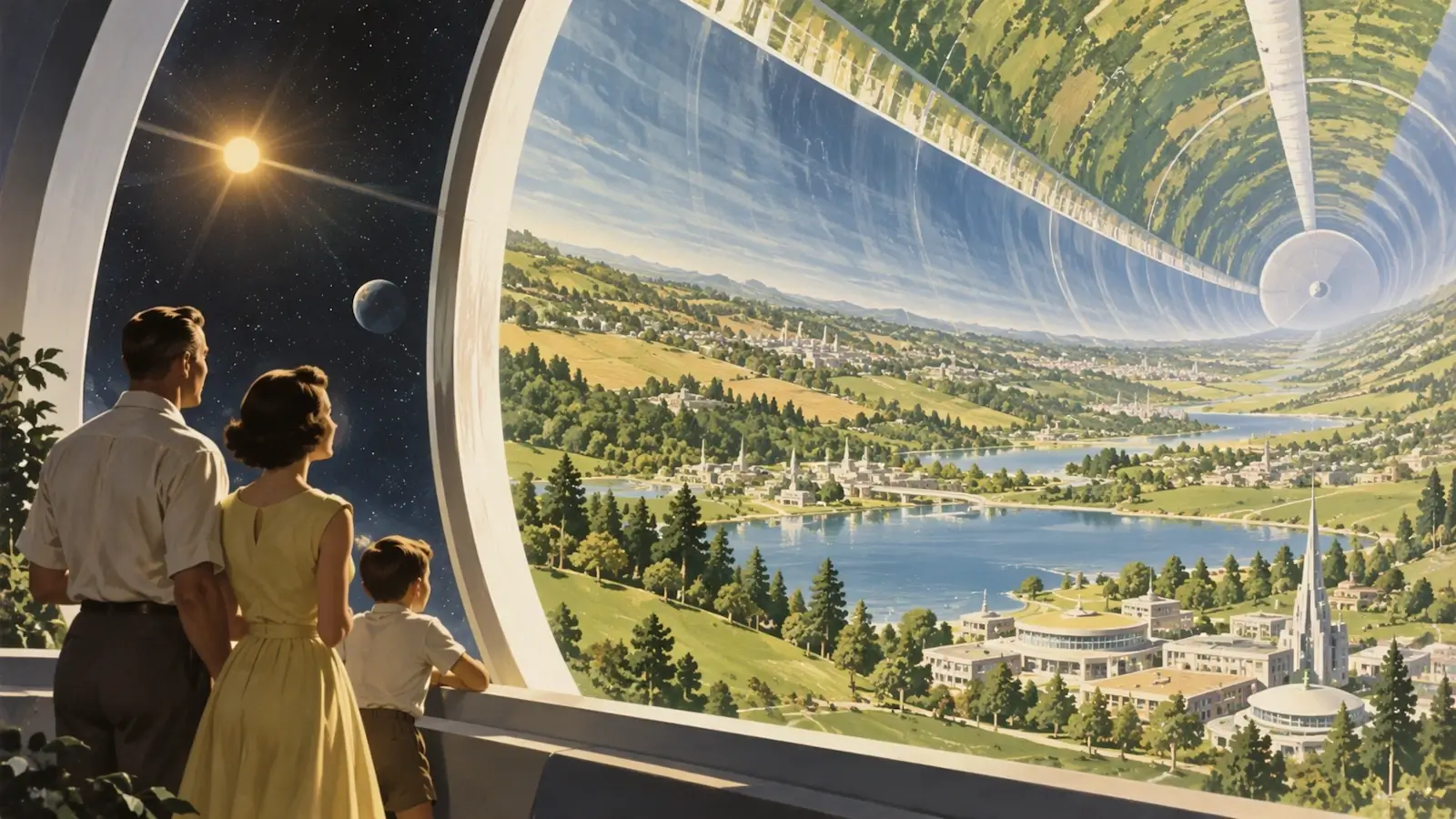
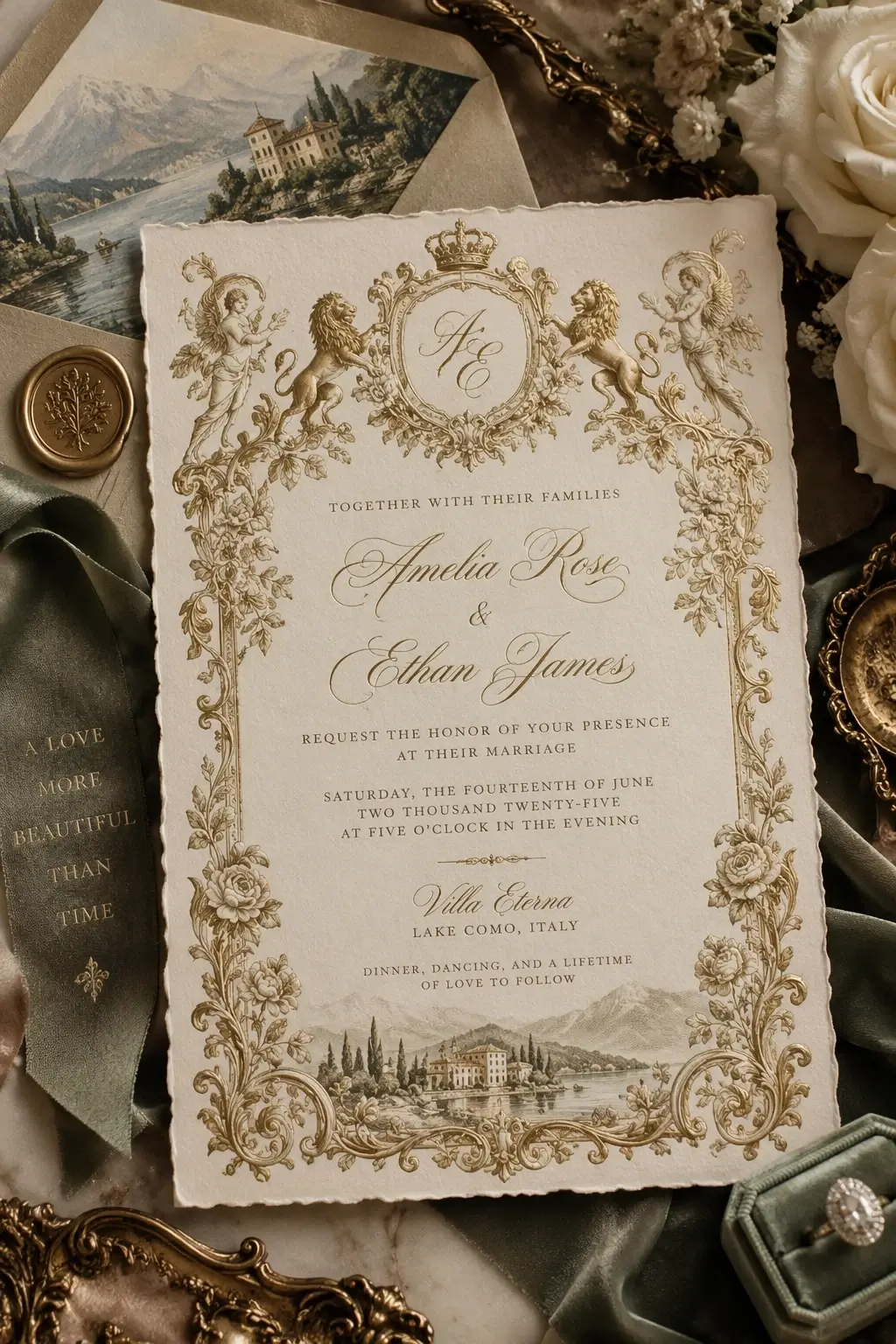
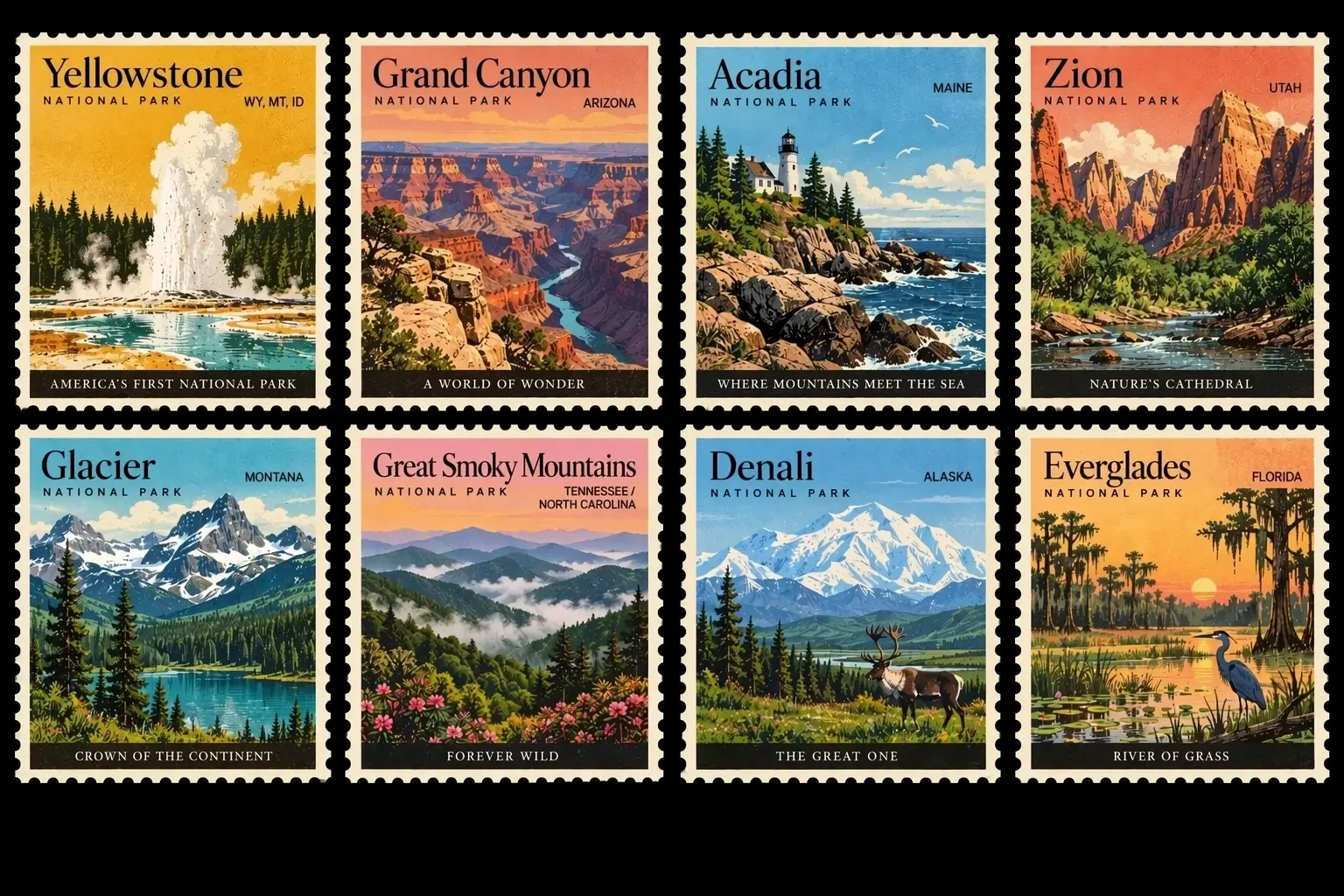
Sign in, choose a model, prepare the prompt or references, calculate the selected output cost, then review the completed image before downloading it.
Choose GPT Image 2.5 Flare or Sunburst and describe the image you want. For an edit, switch modes and upload up to 16 reference images before writing the change instructions.
Choose one of fifteen aspect ratios, select Low, Medium, High, XHigh, or Max quality, set 1K, 2K, or 4K, and choose PNG, JPEG, or WebP.
Sign in, check the required credits, generate the image, review the preview, and download the completed file.
Check the model, source, fifteen ratios, five quality tiers, 1K to 4K resolution, output format, and calculated credit cost before starting an image.
| Setting | Available choice | When to use it |
|---|---|---|
| Generation mode | Text to image or image edit | Choose image edit when one or more references should guide the result. |
| Model | GPT Image 2.5 Flare or Sunburst | Select either model, then check the calculated credits for the chosen quality and resolution. |
| Reference images | Up to 16 images | Use only references that have a specific role in the request. |
| Aspect ratio | Fifteen ratios from 1:1 to 9:21 | Match the canvas to the final placement before generating. |
| Quality | Low, Medium, High, XHigh, or Max | Use the lowest tier that provides the detail required for the image. |
| Resolution | 1K, 2K, or 4K | Use 1K for drafts, 2K for detailed review, or 4K for the largest output. |
| Output format | PNG, JPEG, or WebP | Choose the file format before starting the generation task. |
The Generate button uses this matrix to calculate credits from the selected model, quality tier, and resolution.
Available for text-to-image creation and reference image editing.
| Quality | 1K | 2K | 4K |
|---|---|---|---|
| Low | 1 credits | 1 credits | 2 credits |
| Medium | 1 credits | 2 credits | 3 credits |
| High | 3 credits | 4 credits | 7 credits |
| XHigh | 5 credits | 7 credits | 12 credits |
| Max | 9 credits | 15 credits | 25 credits |
Available for text-to-image creation and reference image editing.
| Quality | 1K | 2K | 4K |
|---|---|---|---|
| Low | 1 credits | 2 credits | 2 credits |
| Medium | 1 credits | 3 credits | 3 credits |
| High | 3 credits | 4 credits | 7 credits |
| XHigh | 5 credits | 7 credits | 12 credits |
| Max | 9 credits | 15 credits | 25 credits |
Start with 10 credits for $0 or choose a one-time credit pack. Each generation uses the calculated amount for its model, quality, and resolution.
Test the generation flow with 10 credits.
Choose Basic for occasional image work.
≈ $0.066 per credit
Choose Creator for more drafts, edits, and higher-credit settings.
≈ $0.055 per credit
Choose Professional for the largest available credit pack.
≈ $0.045 per credit
Review model selection, 16-reference editing, five quality tiers, 4K output, credit costs, and downloads.
You can create posters, product scenes, social images, infographics, interface concepts, storyboards, portraits, and character references. Choose the aspect ratio for the final placement and include visible wording in quotation marks when the image needs a specific title or label.
The current Free Starter option includes 10 credits for $0. Sign in before generation. The required credits depend on the selected resolution and quality, so check the amount shown on the Generate button before starting the task.
Yes. Select Image Edit, upload at least one reference image, and explain what should change and what should remain. You can add up to 16 references and use the prompt to assign a purpose to each one.
The workspace includes 1:1, 3:2, 2:3, 3:4, 4:3, 4:5, 5:4, 9:16, 16:9, 21:9, 2:1, 1:2, 3:1, 1:3, and 9:21. Choose the canvas shape before generation because it affects subject placement and composition.
Choose Low, Medium, High, XHigh, or Max quality, 1K, 2K, or 4K output, and PNG, JPEG, or WebP. Lower settings use fewer credits and suit early drafts. Higher settings use more credits and suit detailed candidates that need closer review.
Describe the subject, setting, composition, lighting, colors, and any required text. For reference-led edits, separate the prompt into what changes, what stays, and what should not appear.
Yes. The completed result appears in the preview area. Open the larger preview to inspect the composition and small details, then use the download control to save the image file.
Open the GPT Image 2.5 Prompts page for reusable examples covering product images, posters, infographics, storyboards, portraits, and reference-led editing. Copy an example and replace the subject, scene, text, and format details.
Return to the workspace, choose Flare or Sunburst, enter a prompt, select the output settings, and review the result.